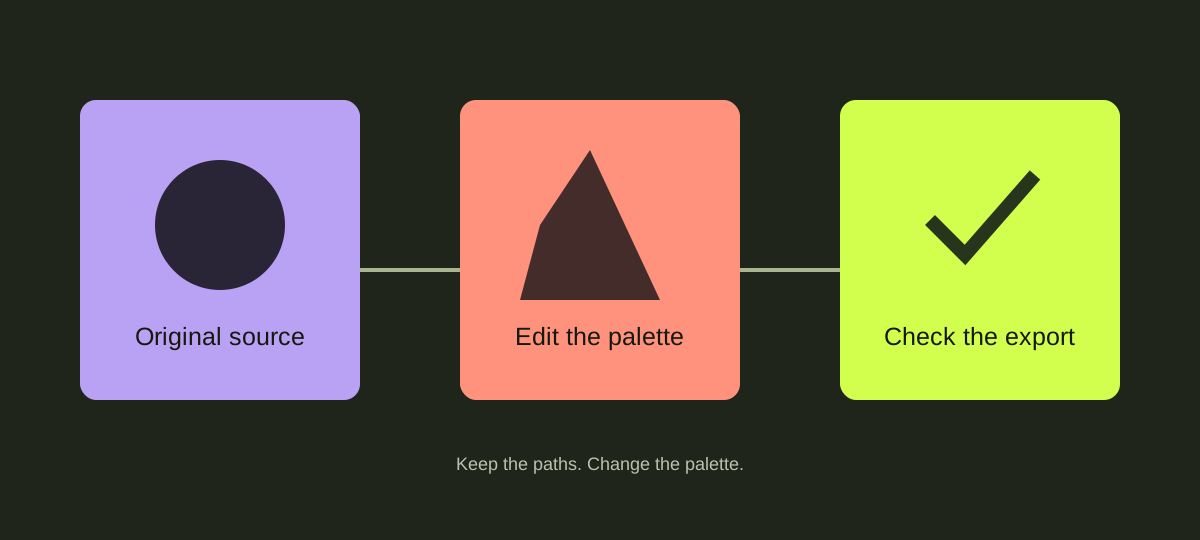
Keep the paths. Change the palette.
1. Choose a real source file.
Open a product page and download a marked SVG sample. Keep the original file and its license beside a working copy. A JPG preview cannot replace editable SVG source.
2. Try a palette in the Design studio.
Choose a sample, change Primary and Secondary colors, then pick a transparent, warm or dark canvas. The canvas setting does not remove paper-colored objects inside an illustration.
3. Export and inspect.
Export SVG to keep vector geometry, or PNG for a fixed raster size. Open the result in a compatible editor and check that the chosen colors and transparency are correct.
4. Edit the full composition if needed.
In an SVG editor, ungroup carefully and select shapes or text. Preserve viewBox proportions, clipping paths and local gradient IDs. Change one copy, not the original.
5. Test at the actual use size.
A fine line or tiny label can disappear at a small size. Check contrast against the final page or slide background. Export another PNG at the required dimensions when the destination needs pixels.

Original samples are governed by the commercial-v1 asset license. This guide does not grant third-party font or application licenses.